
Skype for Business for Android
Microsoft CorporationBusiness
3.75.52K Reviews
- Version
- Varies With Device
- Installs
- 10.00M
- Age Rating
- Everyone
Screenshots




Our Review of Skype for Business for Android
 Analysis by Appyee
I installed Skype for Business on Android with a simple question in mind: can it still make a workday easier when conversations move between a desk, a phone, and several people at once? My answer is qualified but useful. This is a business communication app built around staying connected to an organization’s Skype for Business environment, rather than a general-purpose chat tool that anyone can pick up without preparation.
That distinction matters from the first screen. If your workplace already relies on Skype for Business, the mobile app can extend that working relationship to your phone. If you are looking for a casual calling app for friends, a lightweight team messenger, or a modern replacement for every meeting tool, I would look elsewhere. The experience makes the most sense when there is already an organizational account, a contact directory, and an established way of handling meetings and calls.
Microsoft Corporation develops the app, which is listed as a free business application for Android and is suitable for Everyone. It has been available since March 29, 2013, and its long presence helps explain both its usefulness and some of its dated edges. The app has reached over ten million installs, with an average rating of 3.7 from roughly 174 thousand ratings. Those figures suggest a tool with a broad audience but also a mixed experience, which matches my impression: it can be dependable in the right workplace setup, yet frustrating when the account or organization is not prepared for mobile use.
From a work request to a finished conversation
I use a work request as the test for whether a mobile business app is genuinely helpful: can I understand what is needed, reach the right colleague, and keep the task moving without turning a quick exchange into a distraction? That practical route also makes it easier to see where shared devices and separate accounts need care, which is the next part I consider.
Starting with the right workplace setup
The first practical step is not downloading the app; it is knowing whether your organization still supports Skype for Business access. The application does not create a useful work network by itself. Its value comes from connecting you to an existing business service, so I would confirm the sign-in method with an administrator or colleague before expecting a smooth first session.
This is one of the less obvious trade-offs. A free download does not mean a free-standing communication system. In a personal context, that can feel like unnecessary friction. In a company context, it can be sensible because the app is meant to fit into an account structure that already governs contacts, presence, meetings, and internal communication.
Once the account details are ready, I would install the app on the Android phone I actually carry during the day. The mobile setting changes how I judge it. A desktop client can assume a larger screen, a stable desk, and a headset that is already connected. A phone cannot. Here, the useful question is whether I can move from seeing a work request to taking action without needing to return to a computer.
The interface is most valuable when I treat it as an extension of my work identity rather than as a separate personal messenger. Keeping the work account distinct helps avoid a common mistake: expecting every contact or conversation from another Skype product to appear in exactly the same way. The “Skype” name can make the products sound interchangeable, but Skype for Business is aimed at organizational communication and should be approached on those terms.
Finding the person and choosing the right response
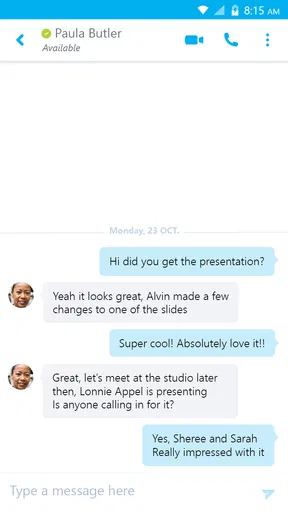
Imagine a realistic morning scenario. A colleague sends a message asking me to review a document before a client call. I am away from my desk, standing in a hallway between meetings. The useful workflow is not simply opening a chat and typing a quick reply. I first need to identify the correct colleague, check whether a message is enough, and decide if the question needs a call or a larger meeting.
That decision is where the mobile client earns its place. A short text can handle a confirmation, while a call is better for a question that would take several back-and-forth messages. If the issue involves multiple people, joining the relevant meeting is more efficient than trying to reconstruct the discussion through individual chats. I like this progression because it follows the work itself: start small, escalate only when the information requires a richer conversation.
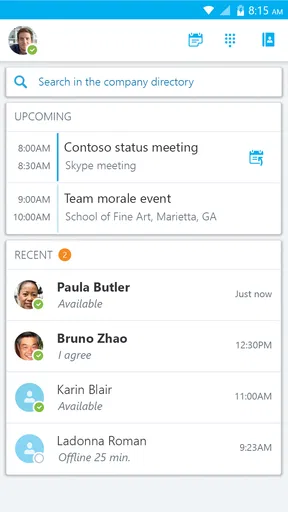
Presence information can also influence the handoff. If a coworker appears available, I may send a direct message or start a call. If the person is busy, a message gives them a chance to respond without forcing an interruption. That sounds minor, but on a phone it prevents a lot of unproductive calling. I can make a choice based on context instead of repeatedly trying to catch someone at the right moment.
My advice is to use a clear first message when the matter is urgent. Say what you need and whether a reply, call, or meeting is appropriate. Mobile conversations are easy to misread when someone is moving between tasks, and a vague “Are you free?” often creates another delay rather than solving the original problem.
Moving from chat to voice without losing the thread
If the colleague replies that a conversation is easier by voice, the next handoff is straightforward in principle: move from the message to a call while keeping the same work context. This is more useful than opening a separate consumer calling app, searching for the person again, and explaining why the call is happening.
In my experience, the phone is especially helpful for short, focused decisions. A five-minute clarification can prevent a long written exchange, and the mobile format means I do not have to wait until I return to my desk. That is the strongest everyday use case here: not replacing every office conversation, but removing the delay between a question and the person who can answer it.
There is a practical limitation, though. A phone call is only as good as the surrounding conditions. Walking through a noisy station, relying on an unstable connection, or holding the phone awkwardly can make a simple conversation tiring. I would use the app confidently for a planned call from a quiet place, but I would not assume that every spontaneous mobile call will feel as polished as a desktop conversation with a proper headset.
Before starting a longer discussion, I would check the phone’s audio situation and move somewhere quiet. That small preparation is more important than it sounds. The app can bring the conversation to the phone, but it cannot make a crowded environment suitable for detailed work. If the topic involves names, figures, or instructions, a noisy call can create more follow-up work than it saves.
Joining a meeting when the work expands
Some requests begin as a private message and quickly become a group problem. Perhaps the document needs input from a manager, a designer, and a customer-facing colleague. At that point, the mobile app can serve as the bridge into a meeting rather than forcing me to wait for a laptop.
This is where I see the difference between a basic calling application and a business-focused client. The purpose is not only to contact one person; it is to help me remain part of the organization’s ongoing conversations while I am away from the desk. For someone who travels between offices, works from shared spaces, or needs to respond during a commute stop, that continuity can be genuinely valuable.
I would still prepare before joining. On a small screen, it is harder to follow several speakers, read supporting material, and take notes at the same time. If I only need to listen and contribute briefly, the phone is a practical option. If I need to present detailed information or compare several documents, a desktop or larger tablet is usually the better choice.
A useful habit is to decide what role I have before opening the meeting. A listener can position the phone and focus on the discussion. A presenter needs more control and should avoid assuming that the mobile experience will offer the same comfort as a full workstation. This is a concrete trade-off: mobility improves access, while a larger screen improves control and concentration.
Handling the handoffs between people and devices
The most important workflow is often not message to call, but desk to phone and phone back to desk. I might begin a conversation on a computer, step away for a delivery, answer from Android, and then return to the office to continue the task. Skype for Business is useful when it lets my work identity follow me through those changes instead of making me start over with a personal number or a second account.
Still, I would not treat device switching as invisible magic. Before an important meeting, I would open the app early enough to make sure the account is ready and the conversation is accessible. A last-second handoff is exactly when sign-in issues, unfamiliar screens, or audio confusion become expensive. The app reduces the distance between devices, but it does not remove the need for a quick check.
This is also why I would keep the mobile app as a companion rather than the only place I work. The phone is excellent for awareness, quick replies, and joining when necessary. The computer remains better for long sessions, document-heavy discussions, and anything that demands sustained attention. Using each device for what it does well produces a more reliable result than expecting Android to reproduce the entire office experience.
Turning the conversation into an outcome
Returning to the document-review example, the successful outcome is not merely that I answered a message. The real result is that the colleague knows whether to proceed, the right people have been brought into the discussion, and the work can continue without waiting for me to get back to my desk.
That outcome depends on choosing the smallest effective communication step. I would begin with a concise message, move to voice if the explanation becomes cumbersome, and involve a group only when the decision needs several people. This sequence keeps the conversation focused and avoids turning a small question into an unnecessarily large meeting.
The app is also useful for people whose jobs depend on availability but not constant desk time. A supervisor checking in with a team, a consultant moving between appointments, or an employee working across offices can benefit from having business conversations close at hand. The value is less about flashy extras and more about reducing the gap between “I need an answer” and “the right person has received the question.”
For a small organization already committed to Skype for Business, that can be enough reason to keep the app installed. It provides a familiar mobile route into the existing work environment without adding a separate personal communication habit. For a larger organization, the benefit depends heavily on how consistently the company manages accounts and meetings. A well-organized workplace makes the app feel purposeful; a fragmented one makes every handoff feel uncertain.
Where the workflow breaks down
The first breaking point is account access. Because this is an organizational client, a person can download it successfully and still be unable to use it productively without the correct workplace setup. That is not a flaw unique to the Android app, but it is an important warning for anyone who expects an instant, consumer-style experience.
The second is product confusion. Skype for Business is not simply the same thing as the consumer Skype experience with a business label. If your contacts, meetings, or company communication live in another service, this may not be the right app to install. I would choose the tool used by the people I need to reach, not the one with the most familiar name.
The third is mobile overload. A phone is convenient until a meeting becomes visually demanding or runs for a long time. Small controls, limited screen space, and the temptation to multitask can reduce the quality of the conversation. I would skip the mobile route for presentations, detailed reviews, or sessions where I need to monitor several pieces of information at once.
There is also a broader question of fit. Many teams now prefer collaboration platforms that combine messaging, file work, calendars, and meetings in one newer workspace. If your organization has already moved to another platform, adding this app may create duplicate notifications and split conversations. In that situation, the usual alternative is better because consistency matters more than preserving a familiar brand.
Who should use it and who should pass
I would recommend Skype for Business for an employee whose company actively uses the service and who needs a dependable way to stay reachable away from a computer. It is particularly sensible for short work calls, presence checks, quick decisions, and joining an existing business meeting while traveling between locations.
I would also consider it for someone who values a clear separation between personal and professional communication. Keeping work conversations inside the organization’s business environment can be cleaner than mixing colleagues with personal contacts in a consumer app. That separation becomes more useful as the number of work conversations grows.
I would skip it if I only want to call friends and family, if my workplace uses a different collaboration system, or if I need a modern all-in-one workspace for files and project coordination. I would also avoid making it my only meeting device if my role involves presenting documents or leading long, detailed sessions. In those cases, a desktop client or the organization’s newer collaboration platform is likely to be more comfortable.
After using it as a mobile extension of a business workflow, I see a practical, conditional tool rather than a universal recommendation. Its strongest quality is continuity: a work conversation can follow me from a message to a call, from one colleague to a group, and from a desk to an Android phone. Its main weakness is that the experience depends on an existing organizational setup and can feel less convenient when the task outgrows a small screen.
My final recommendation is simple: install it when your workplace already depends on Skype for Business and you need mobile access to that specific environment. In that situation, the free app can remove real delays from an ordinary workday. If you are choosing a communication platform from scratch, or your team has already standardized elsewhere, I would not install it merely because it carries the Skype name.
For the right user, Skype for Business remains a useful bridge between office communication and mobile availability. It does not replace good account preparation, a quiet place to talk, or a larger screen for demanding work. What it does well is keep a business conversation moving when the person who needs to answer is no longer sitting at a desk.
Verdict
Strengths of Skype for Business for Android
- Reliable voice and video calls on supported business networks.
- Optimized for workplace meetings and corporate communication.
- Supports screen sharing during presentations and troubleshooting.
- Offers presence indicators to show coworkers’ availability.
- Can connect with enterprise contacts and scheduled meetings.
Limitations of Skype for Business for Android
- Requires a work or school account rather than a personal Skype login.
- Some features depend on company server settings and administrator policies.
- The interface feels dated compared with newer collaboration apps.
- Call quality can vary noticeably on weak mobile connections.
- Microsoft has retired the service in favor of Microsoft Teams.
Other Releases by Microsoft Corporation
View All
Microsoft OneDrive
Productivity4.6

Microsoft OneNote: Save Notes
Productivity4.6

Link to Windows
Productivity4.0

Microsoft PowerPoint
Productivity4.8
Similar Picks in This Category
View All
LinkedIn: Community & Network
LinkedIn3.8

Zoom Workplace
zoom.com4.1

Microsoft Teams
Microsoft Corporation4.6

Meta Business Suite
Meta Platforms, Inc.4.6

Webex Meetings
Cisco Systems, Inc.4.5

TeamViewer Remote Control
TeamViewer4.4
Frequently Asked Questions
What is Skype for Business for Android used for?
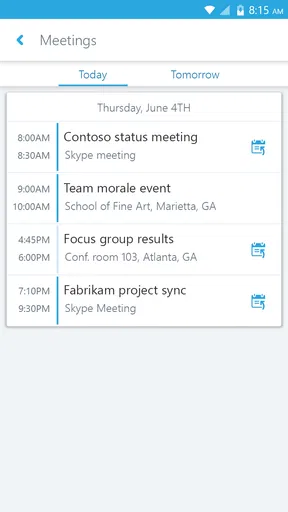
Skype for Business for Android is a mobile communication app designed for workplace meetings, instant messaging, voice calls, and video conferences. After signing in with an organization-provided account, users can contact colleagues, join scheduled meetings, check availability, and share their camera or microphone. It is mainly intended for companies and schools using Microsoft’s Skype for Business infrastructure rather than personal Skype accounts.
Can I use Skype for Business for Android with a regular Skype or Microsoft account?
Usually, no. Skype for Business uses an organization’s Skype for Business Server or Microsoft 365 business deployment, so you generally need login details supplied by your employer, school, or administrator. A standard personal Skype account is not normally interchangeable with a Skype for Business account. Before downloading, confirm that your organization still supports the service and has enabled mobile access for your account.
What features are available during meetings on the Android app?
The Android app supports several practical meeting features, depending on your organization’s configuration and the meeting type. You may be able to join audio or video meetings, use instant messaging, view participants, mute your microphone, turn your camera on or off, and manage calls. Some advanced collaboration options, such as presenting content or sharing a screen, may be restricted by the meeting setup or device.
Does Skype for Business for Android require a strong internet connection?
Yes. The app relies on Wi-Fi or mobile data for messaging, calls, and meetings. A stable connection is especially important for video conferences, because weak signal strength can cause delays, dropped calls, poor audio, or blurry video. Using Wi-Fi is often preferable for longer meetings, while mobile data usage can be significant when video is enabled. Headphones can also improve audio quality in busy environments.
Is Skype for Business still supported, and should I install it?
Skype for Business has been retired for many users as Microsoft has moved organizations toward Microsoft Teams. Availability and support can therefore depend on your employer’s systems, region, and account type. The app may still be necessary for organizations operating a compatible Skype for Business deployment, but it may not be useful for new personal users. Check with your administrator whether you should install Skype for Business or Microsoft Teams instead.
